
Side Loading BiblioBoard on Kindle Fire

In order to have the BiblioBoard Library app available on your Kindle Fire device, you must follow the instructions below, which require changing a few settings. Also, remember that you can always access BiblioBoard via your browser at any time without any need of the app.

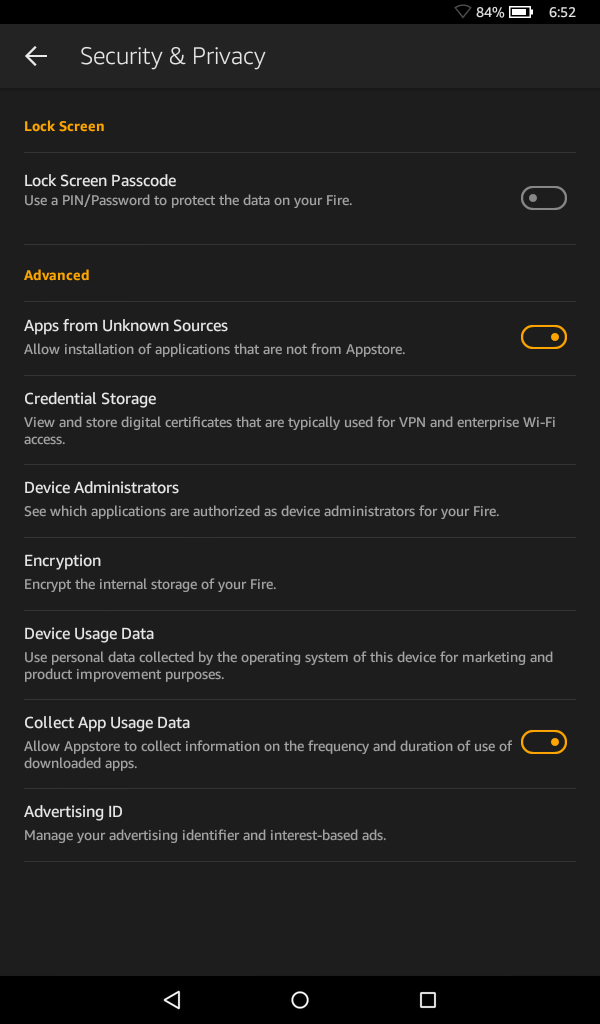
Enable Sideloading in your Kindle Settings (Settings > Security & Privacy > Apps from Unknown Sources)
Visit the Settings menu on your Kindle device. Once there, visit “Security & Privacy,” and toggle the “Apps from Unknown Sources” option to ON. A popup may appear once you toggle ON. Be sure to tap “Accept” or “OK” before moving on.

Open a browser on your Kindle, and visit the following link
Open up a browser window, and visit:
http://files.biblioboard.com.s3-website-us-east-1.amazonaws.com/mobilebuilds/library/biblioboard.apk

The app will begin to download.

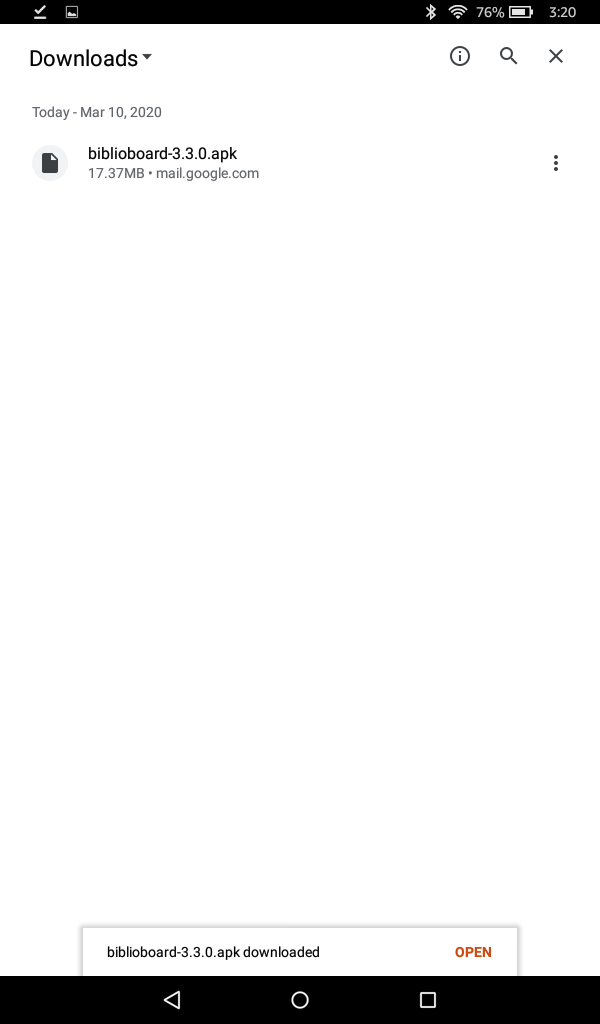
Tap on the download once it’s complete
In your browser, select the menu button on the left (three horizontal lines). A sidebar will appear. Then, select “Downloads.” Once you see that the download has completed, tap the file name to open (Note: the “Open” option may be at the bottom of the screen).

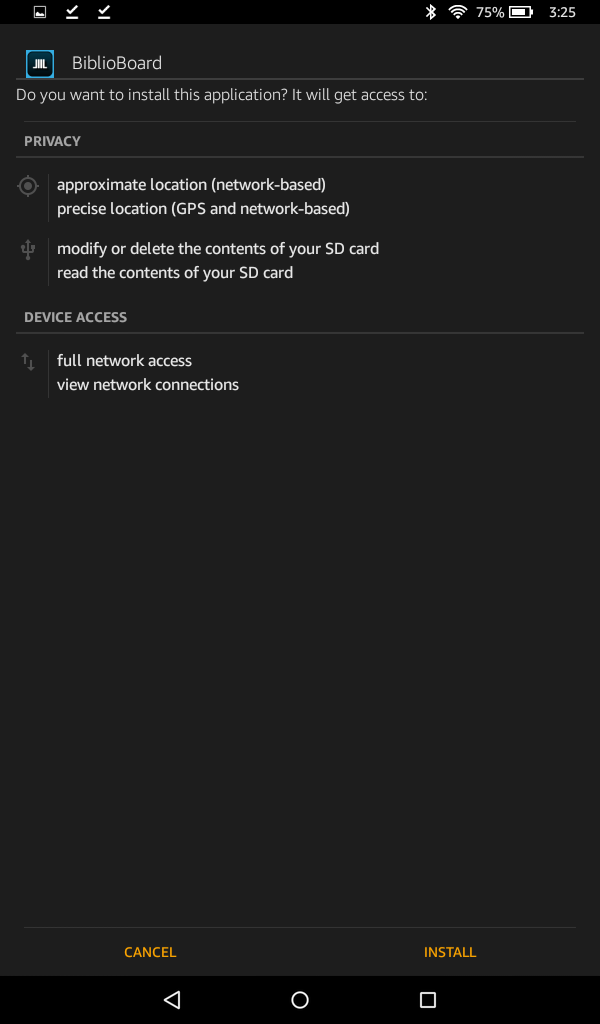
Select “Install” to begin the installation of BiblioBoard Library
You’ll see a new screen giving you additional information about BiblioBoard Library. Select “Install” in the lower right corner to continue.

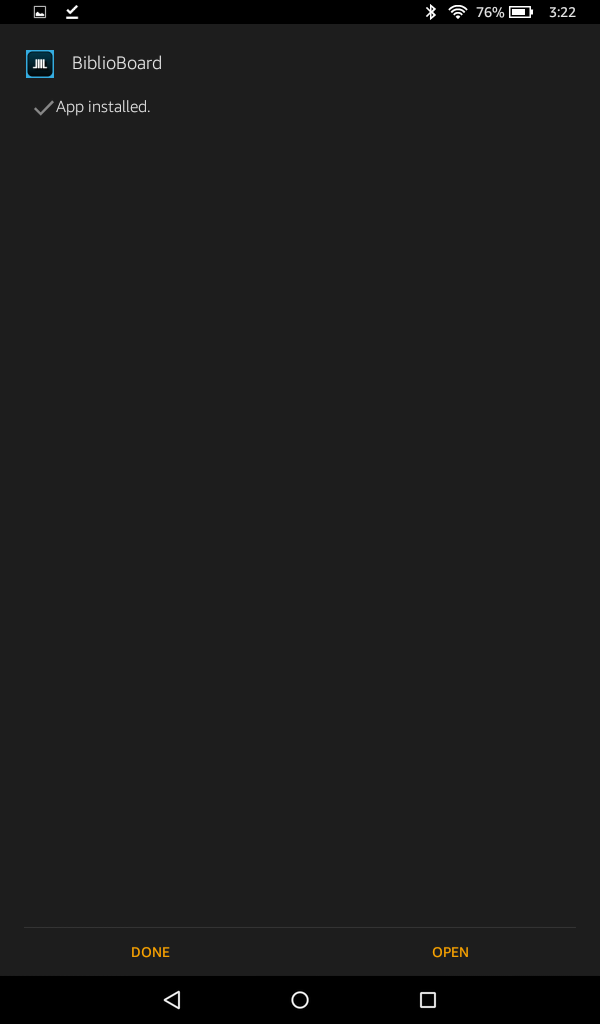
Open the app once installed
Select “Open” from the lower right corner once the app has finished installing.

No waiting! Just reading!
You’re all set. No waitlists. No checkouts. Just reading (and viewing, listening, and watching)!
Be sure to enable location settings to make logging into BiblioBoard Library even easier.

If you have any issues with downloading the BiblioBoard Library app on your Kindle, logging in, or any other technical difficulties, please send us an email at: support@biblioboard.com
We are happy to help!